Download and Installation
Registration & Activation Required
Downloading and installing NovaTimeAI does not automatically activate the service.
To use NovaTimeAI, you must register and activate an account. A free trial period is available, after which a paid subscription is required to continue using the service.
You may download and install the files before registering, but NovaTimeAI will not be fully operational until your account has been registered and activated.
Download the files below to install and set up NovaTimeAI for Microsoft Project.
1. Manifest File
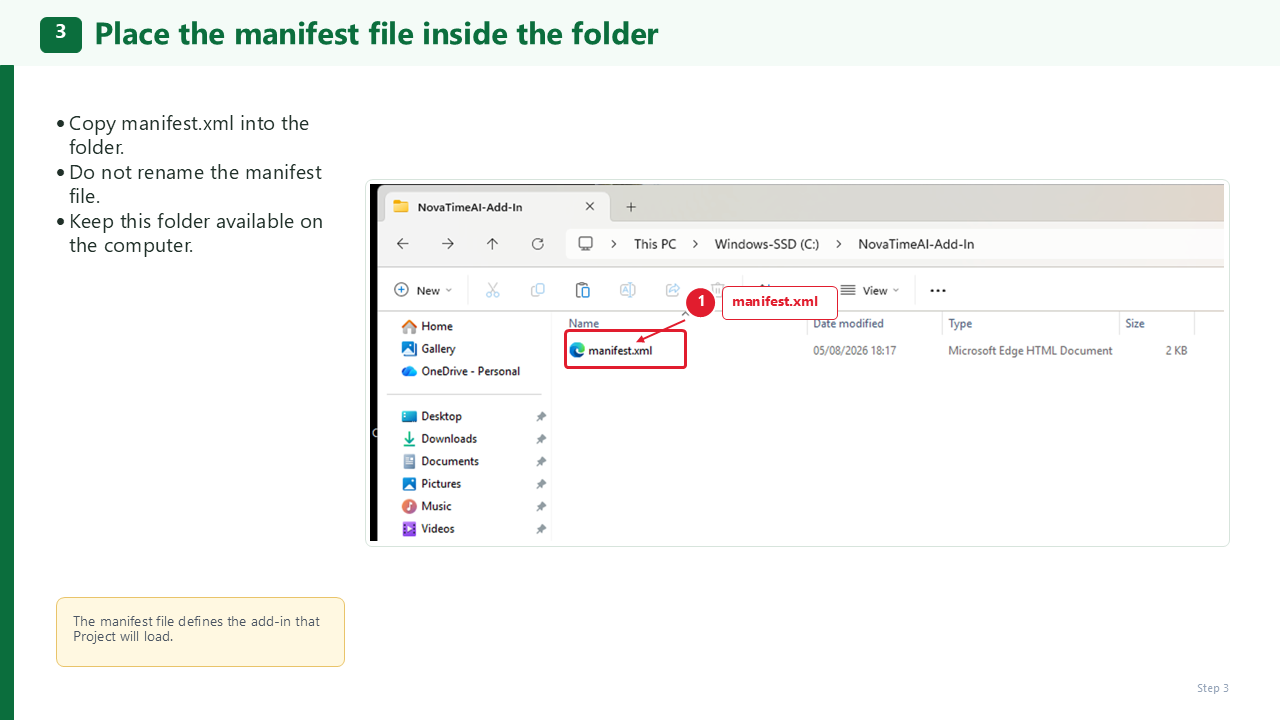
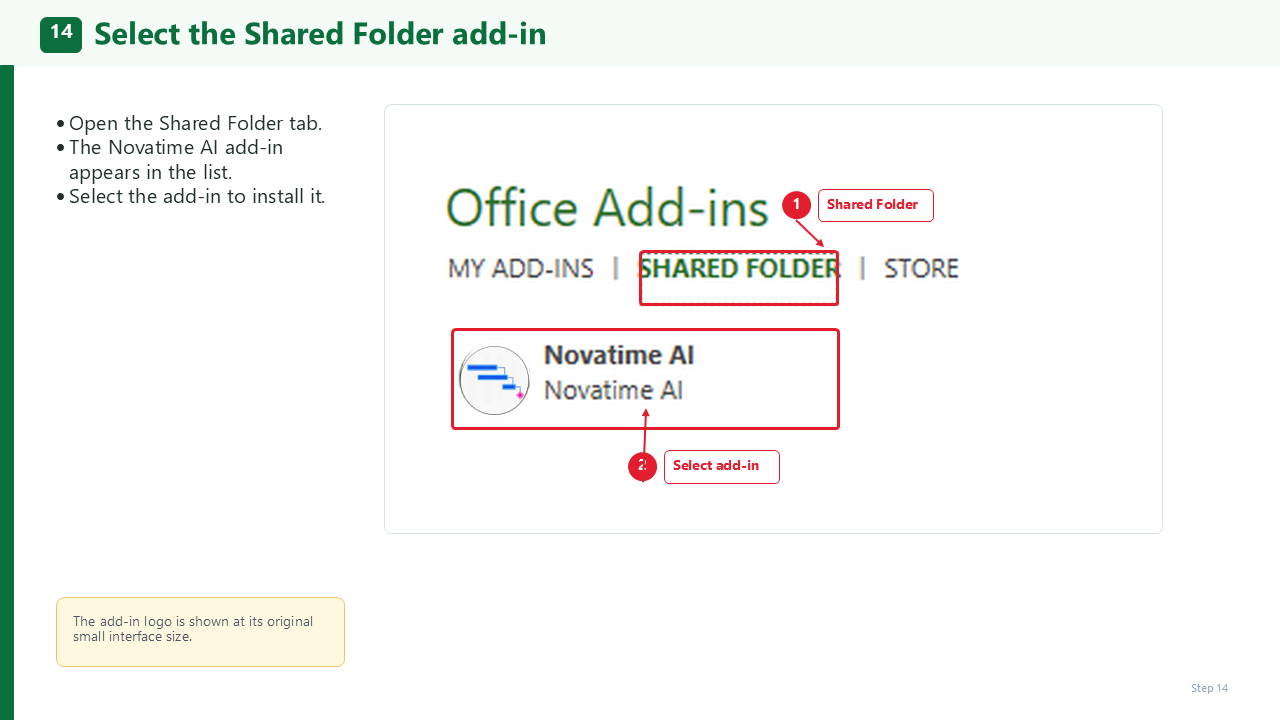
Download the MANIFEST.XML file required to add Novatime AI to Microsoft Project.
Installing the Manifest
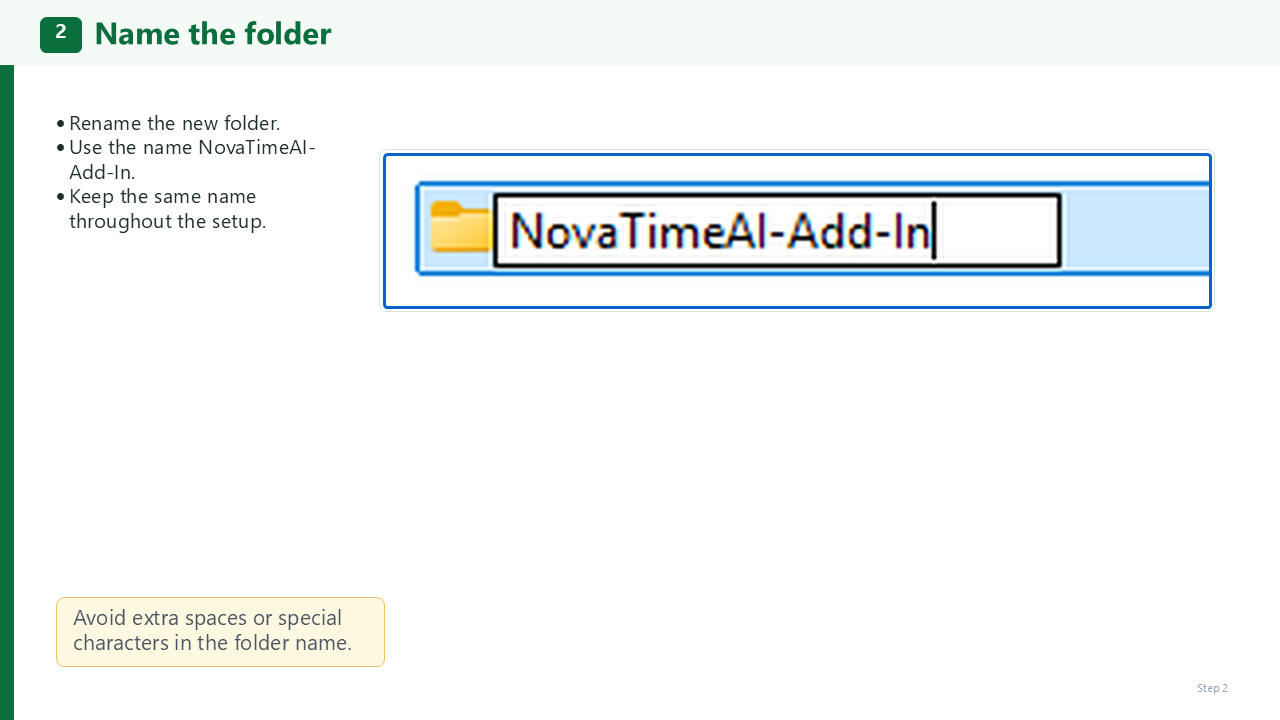
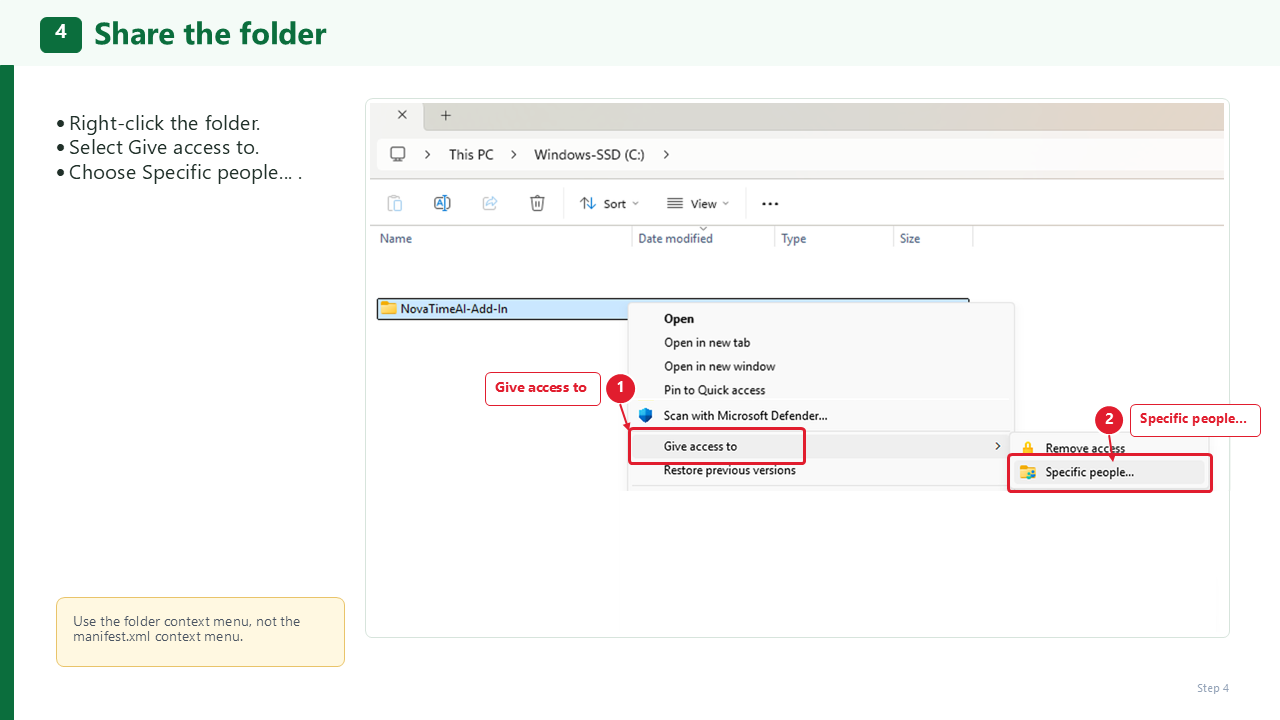
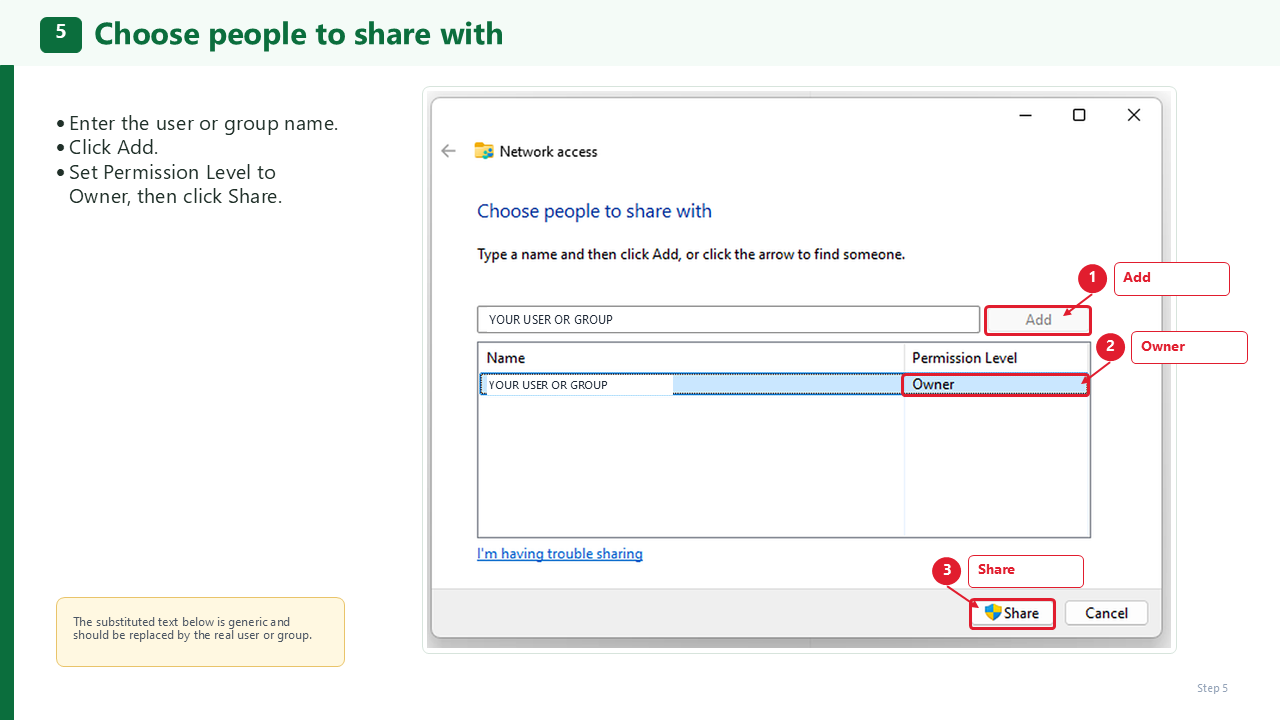
There are several ways to install the NovaTimeAI manifest.
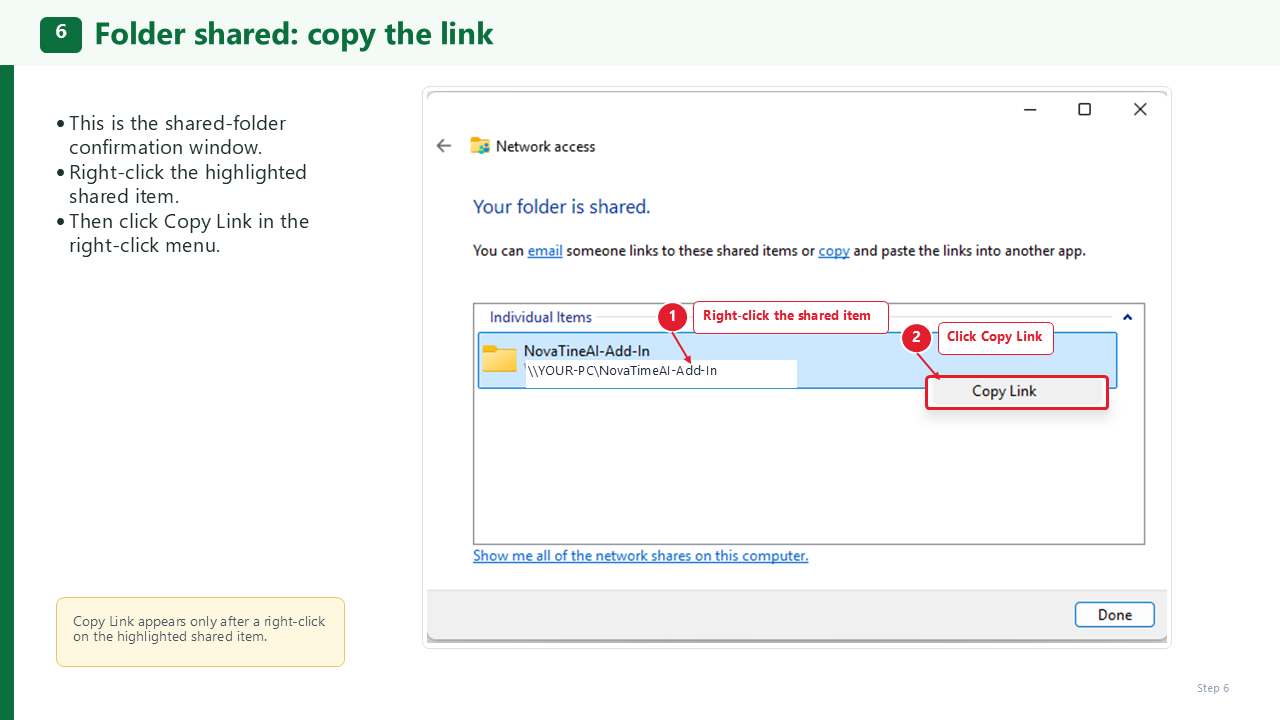
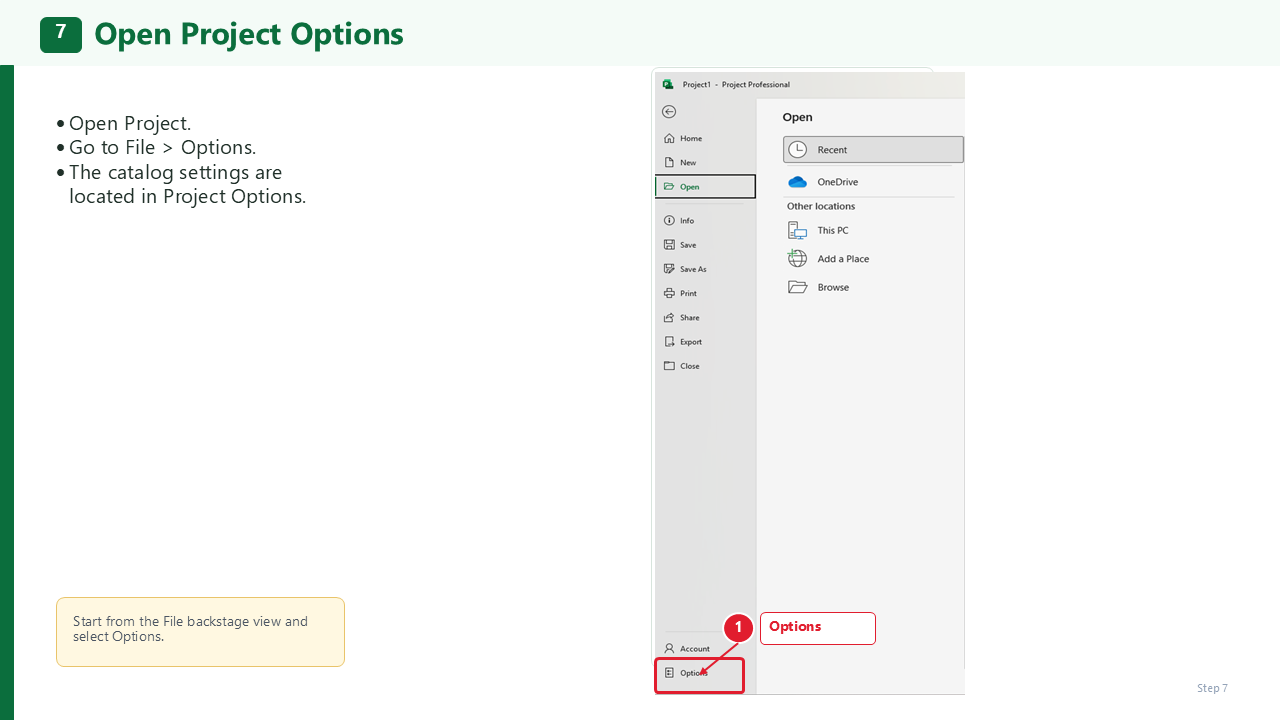
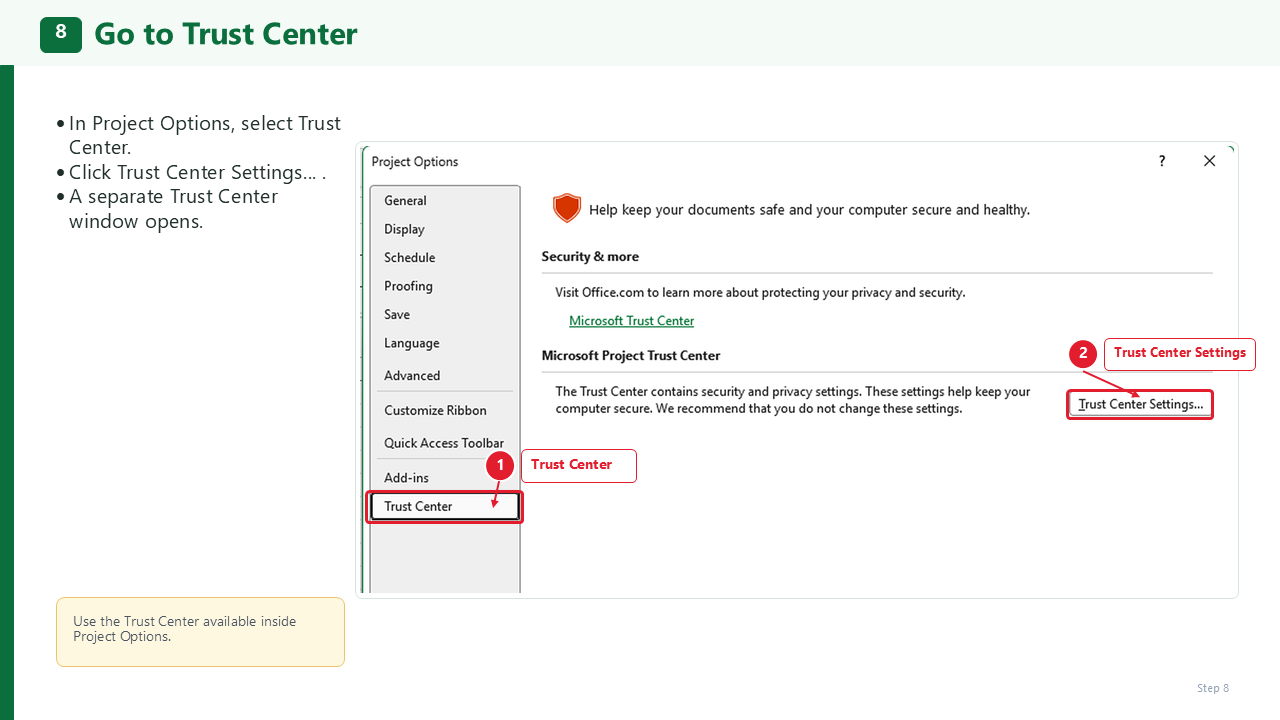
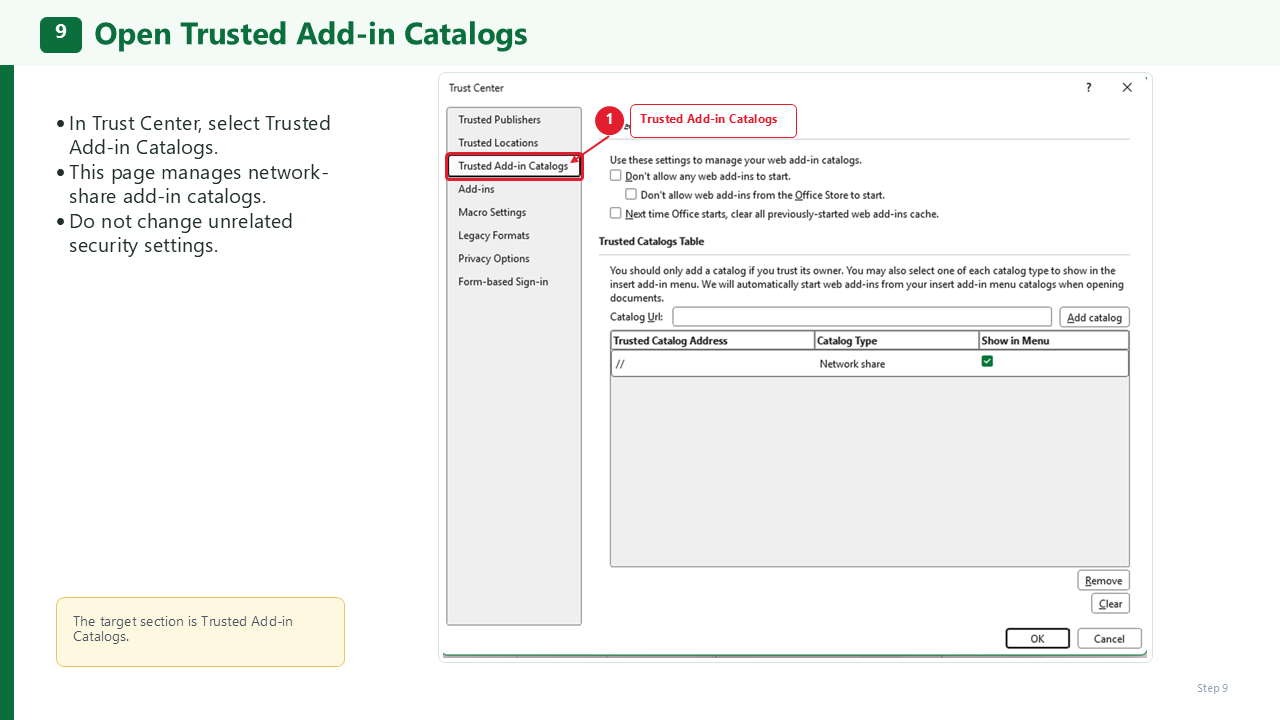
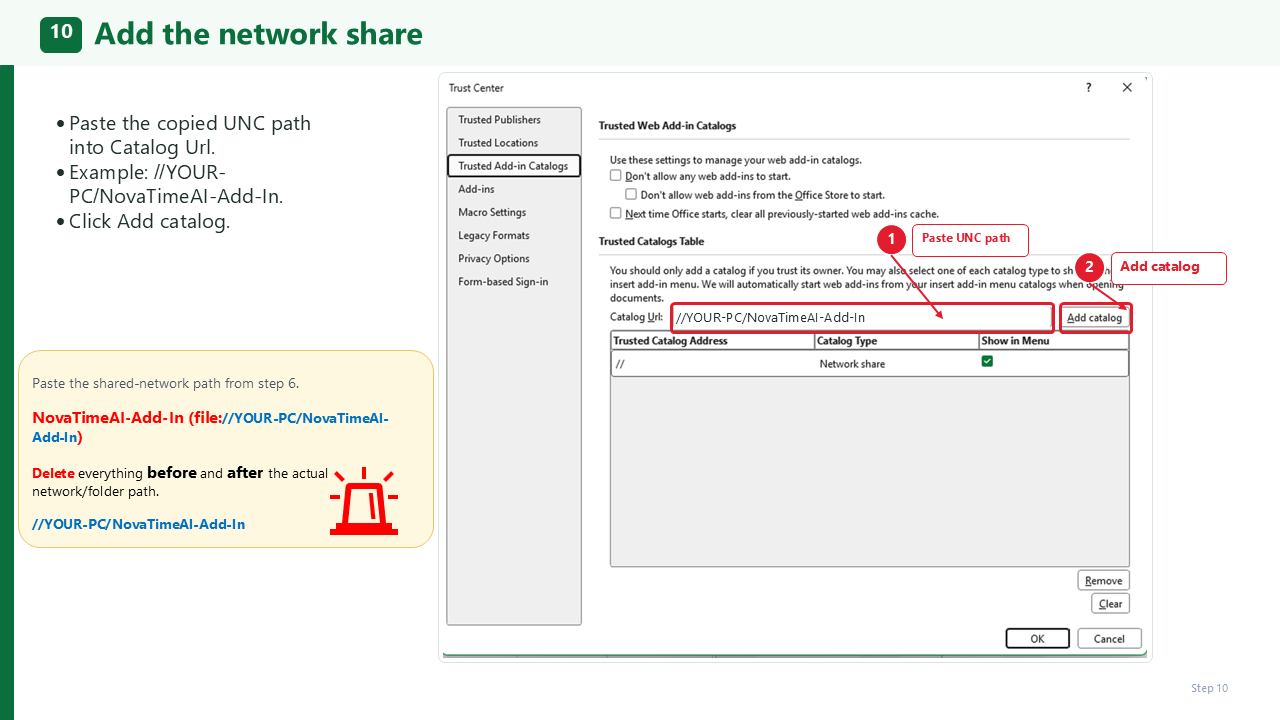
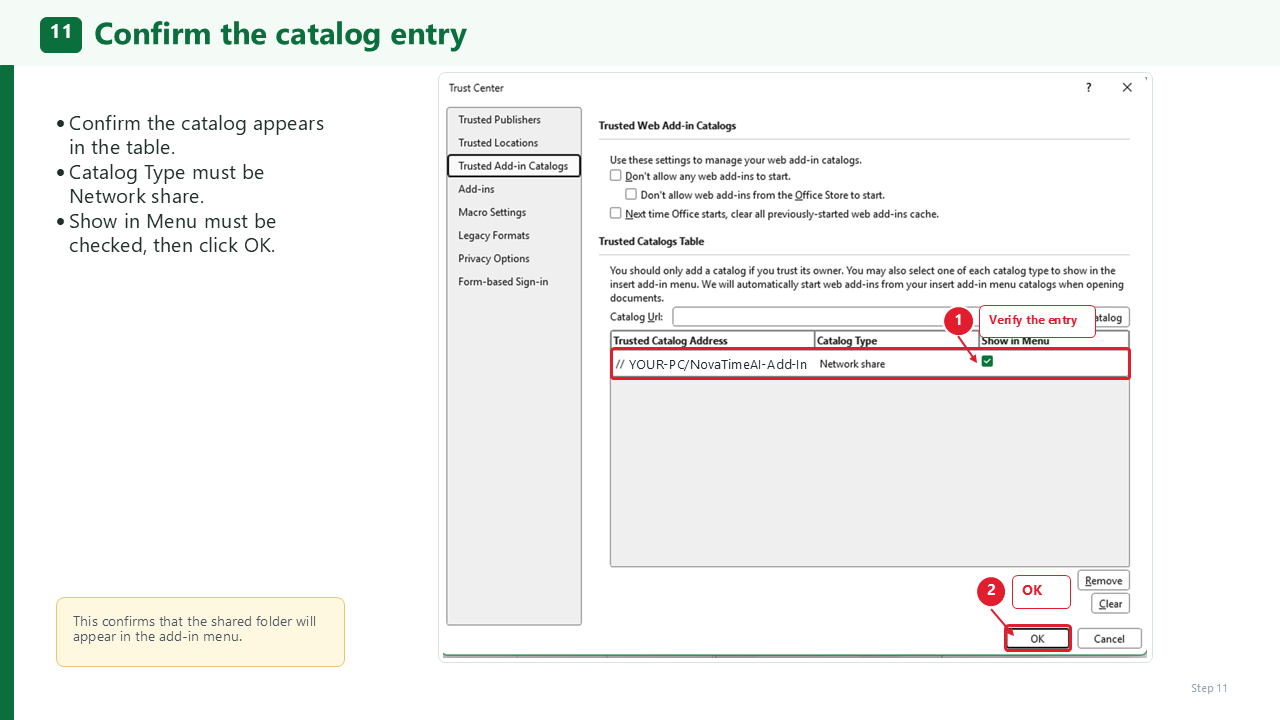
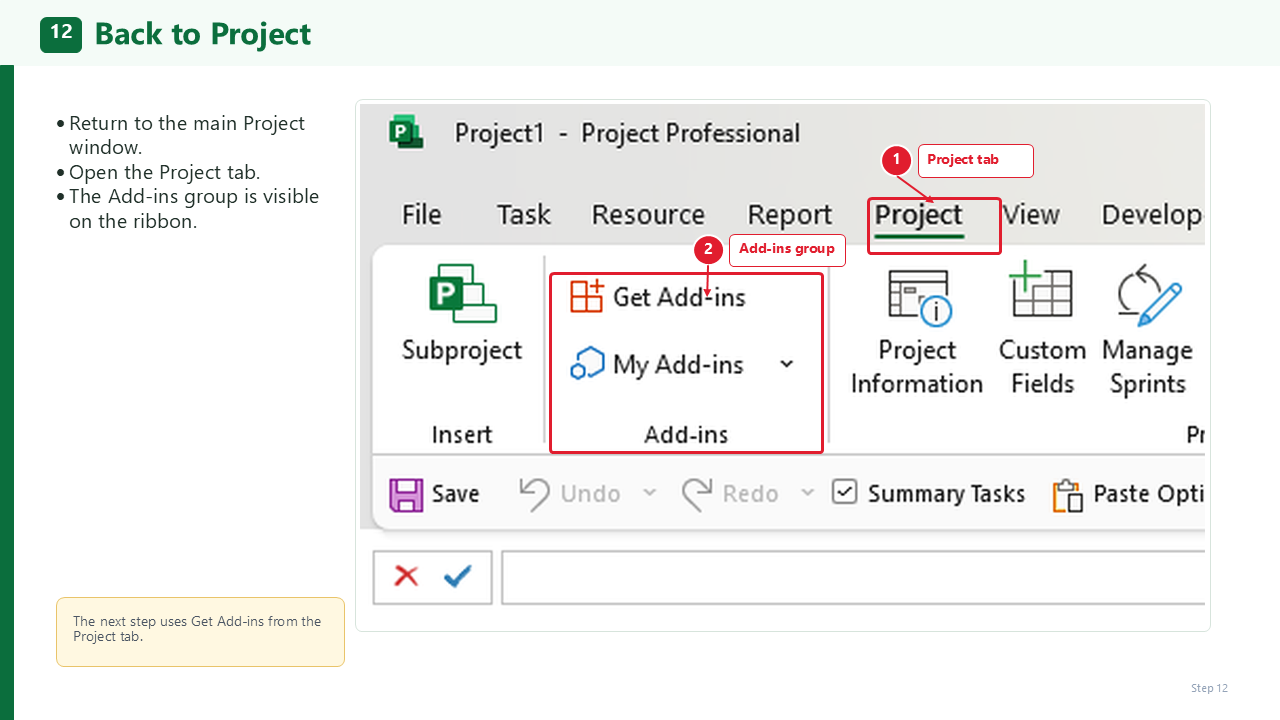
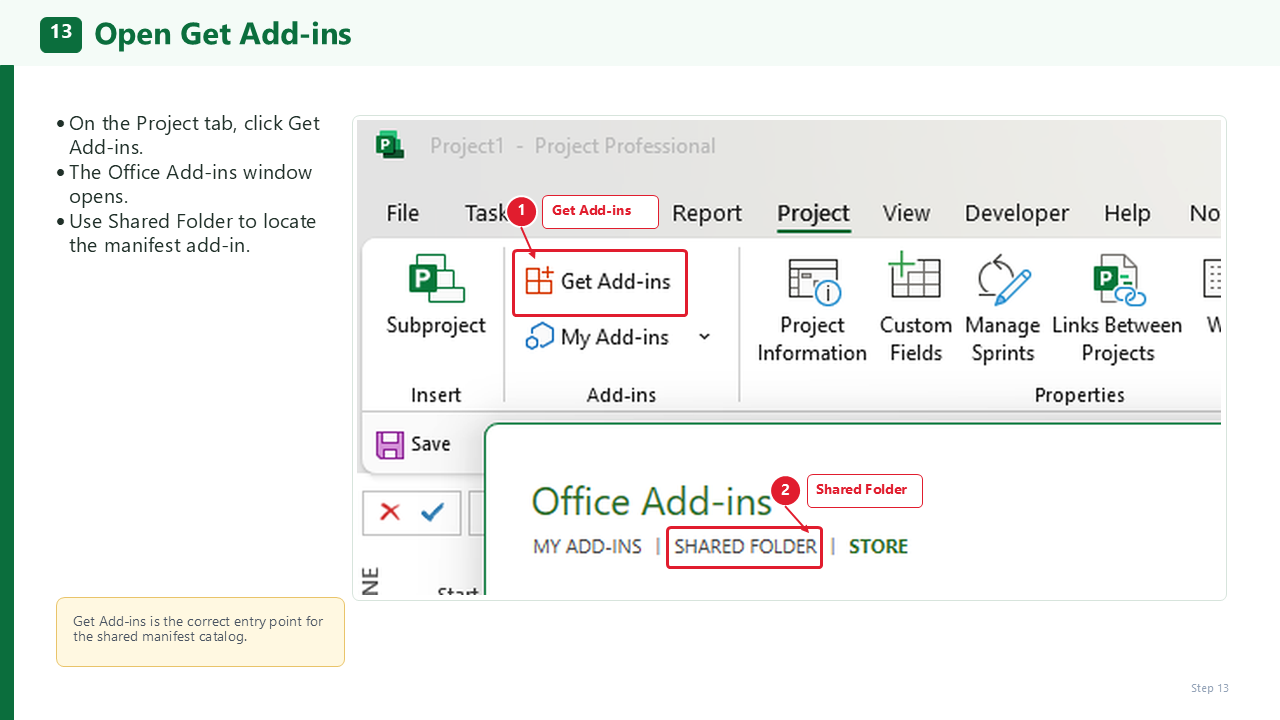
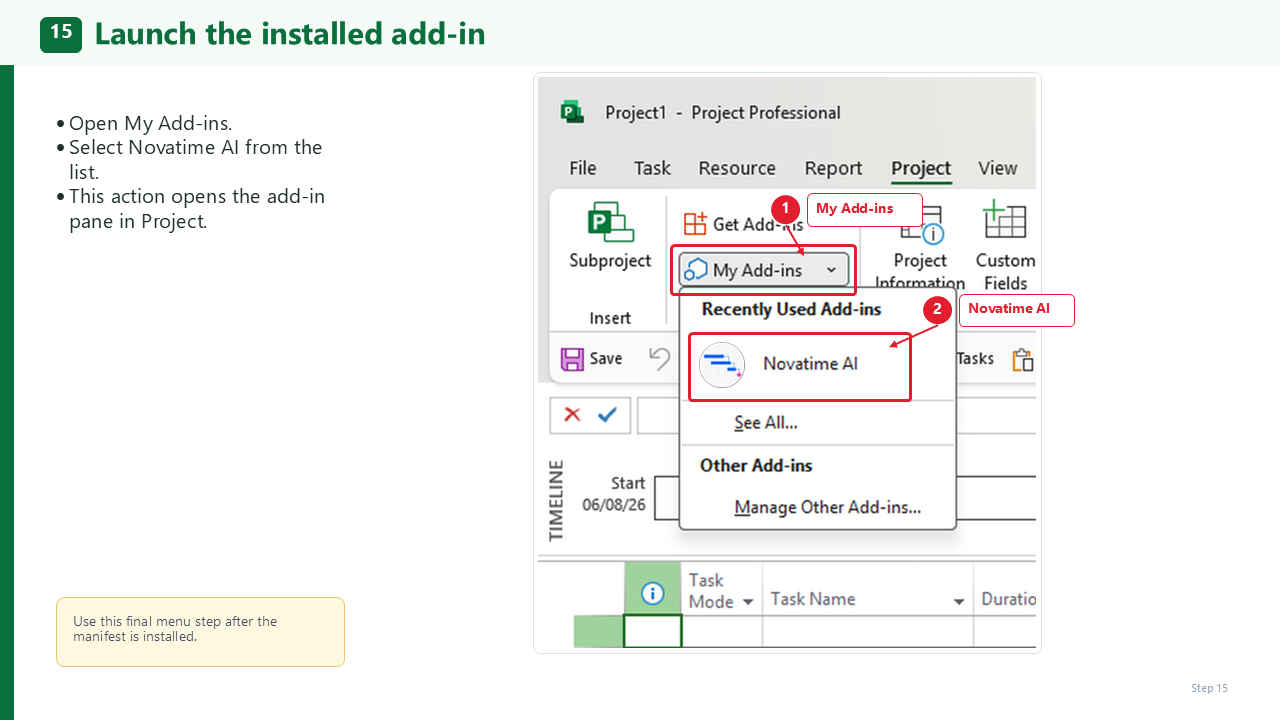
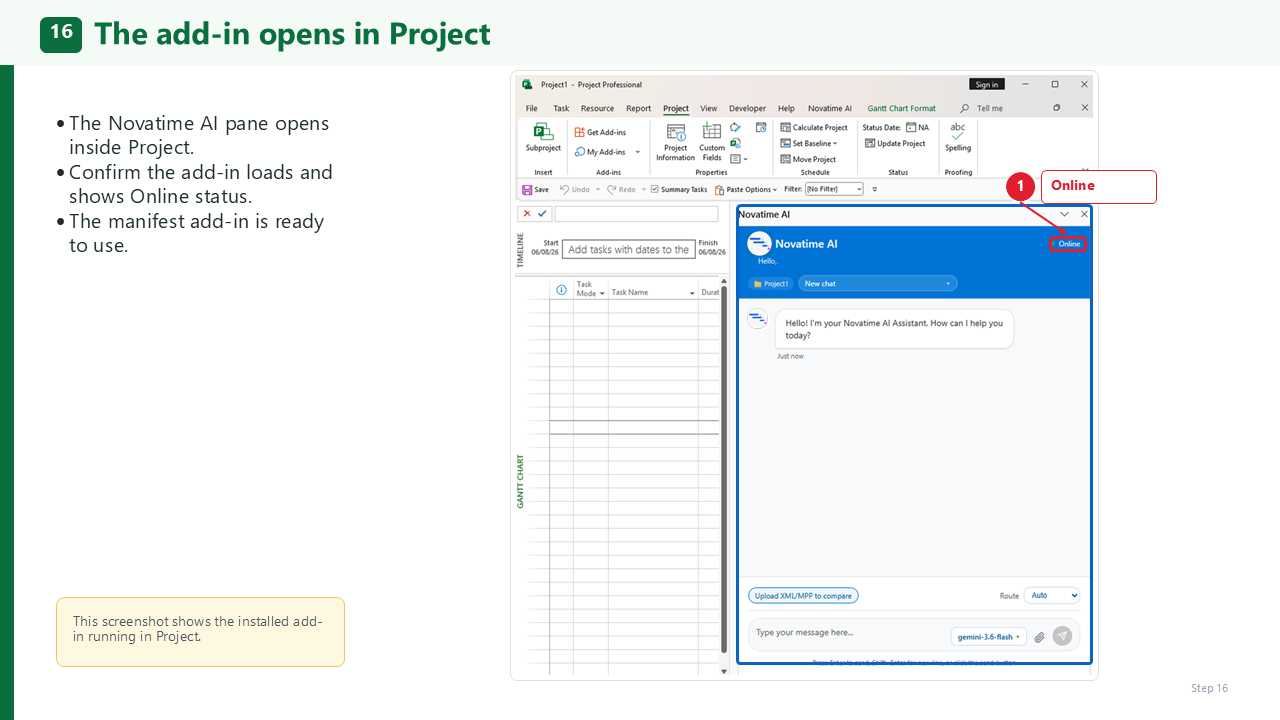
Option 1 – Install the Manifest Manually
Follow the instructions provided for your version and your organization's Microsoft environment.
You can also use an AI assistant such as ChatGPT and ask:
“How do I install an XML add-in manifest in Microsoft Project?”
Option 2 – Ask Your System Administrator
In managed corporate environments, your IT or system administrator may deploy the NovaTimeAI manifest centrally, including through your organization's SharePoint or Microsoft environment.
Ask your system administrator to deploy the provided MANIFEST.XML file, and then follow any additional instructions provided by your IT department.
2. Installer
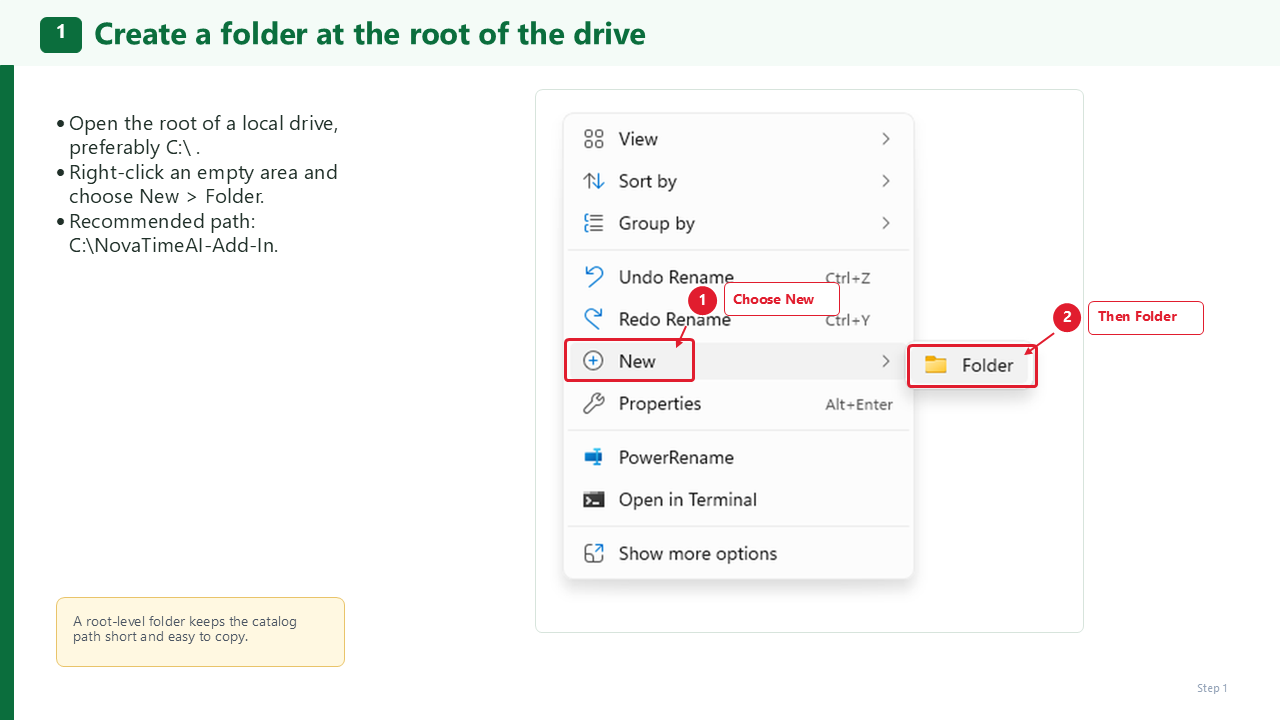
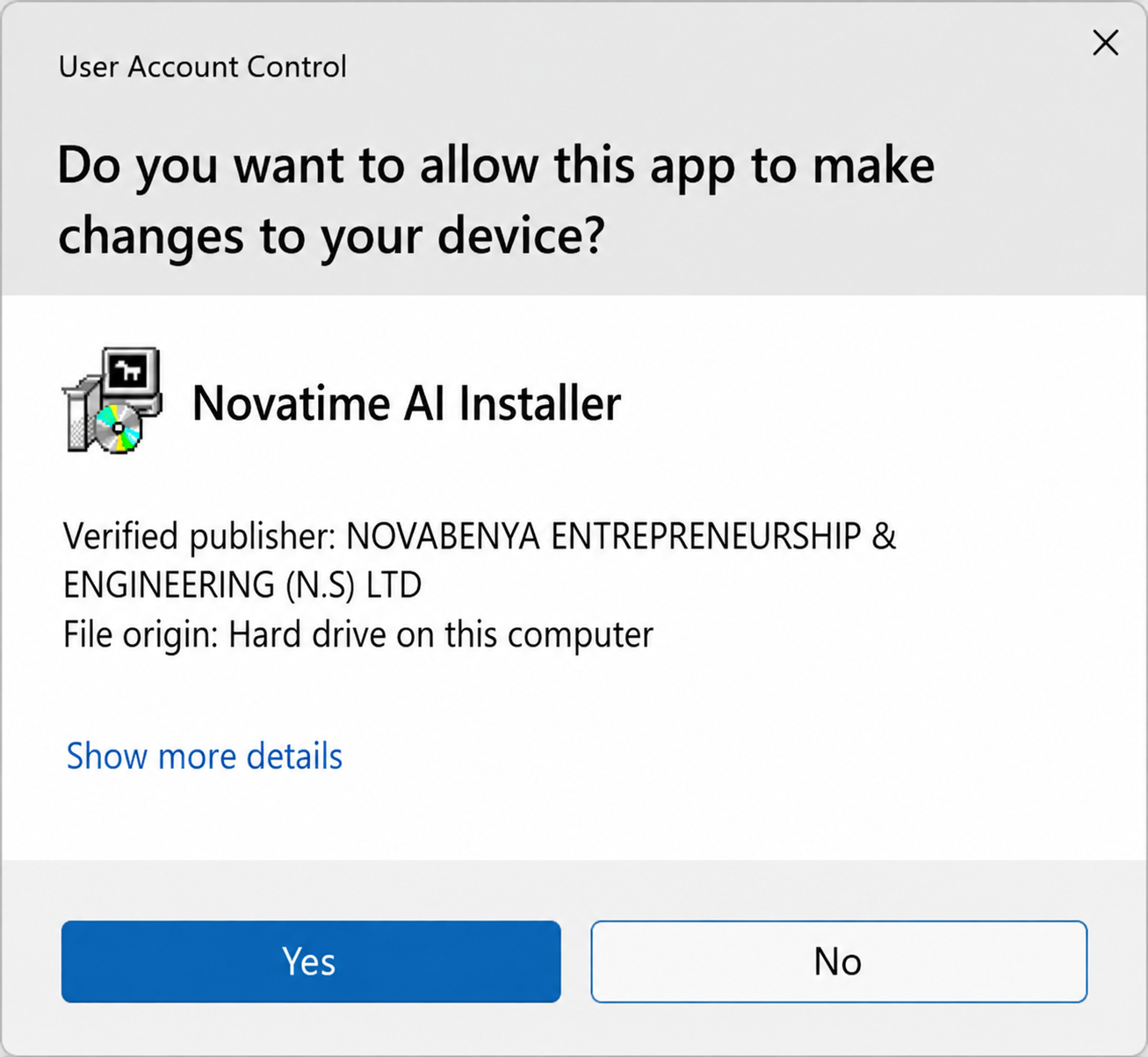
Download and run the installer.
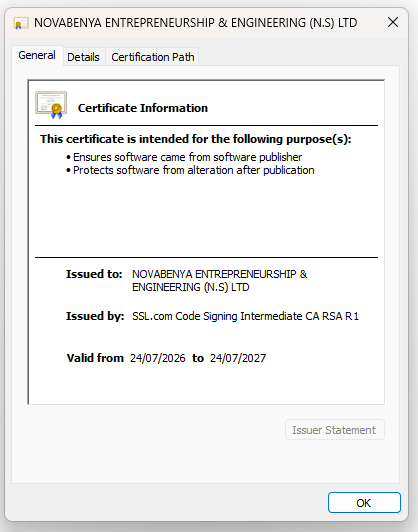
Verified & Secure Download
Our installer is fully code-signed with a trusted SSL/Code Signing Certificate. It is 100% safe, clean, and free of any malware or adware.
Publisher: NOVABENYA ENTREPRENEURSHIP & ENGINEERING (N.S) LTD
Compatibility: Windows 10/11 & Microsoft Project Desktop (2016 and newer).
Note: Since this is a new release, Windows SmartScreen might occasionally show a warning. Rest assured it is completely safe—just click "More Info" and then "Run Anyway".
3. User Guide
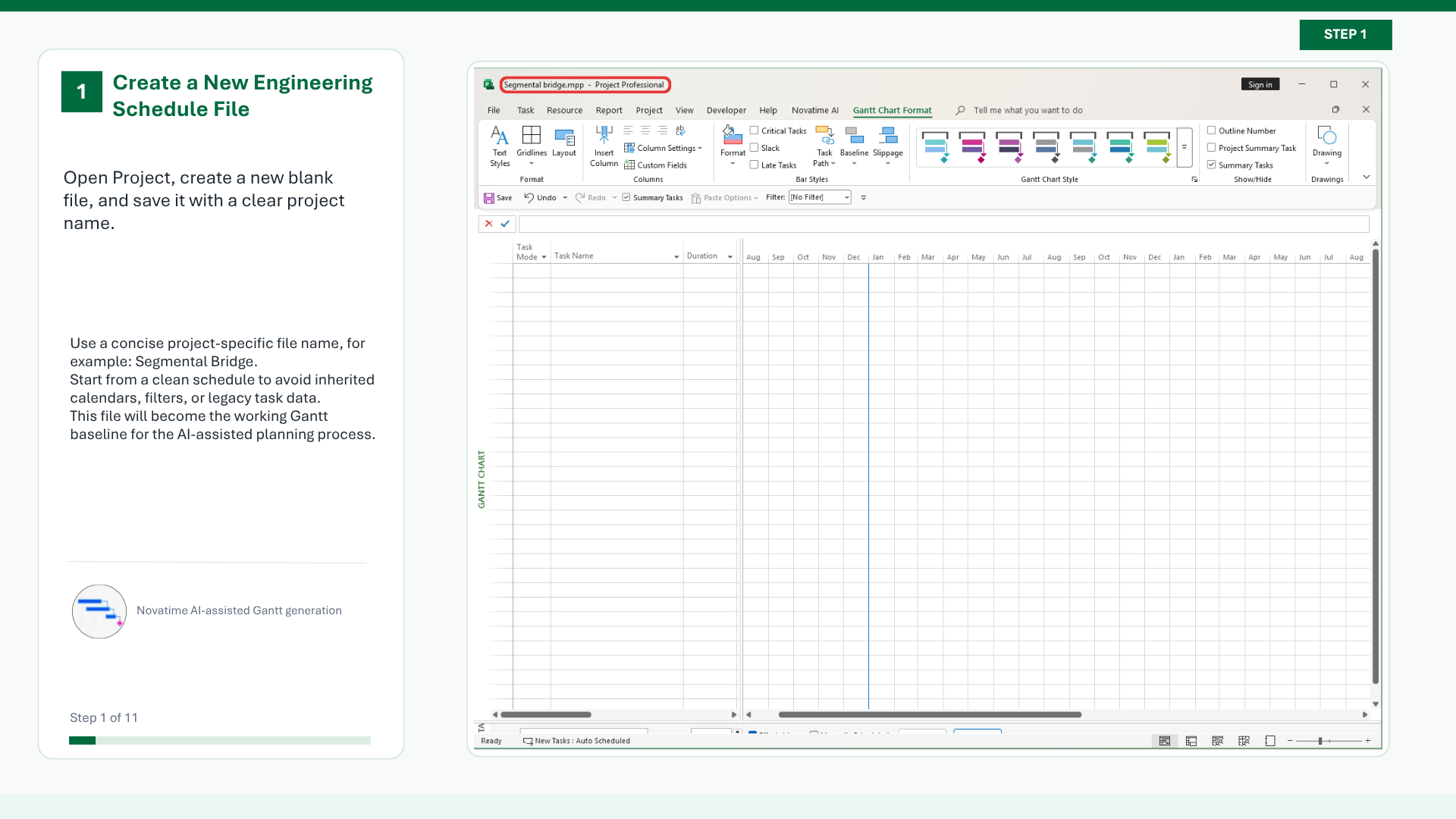
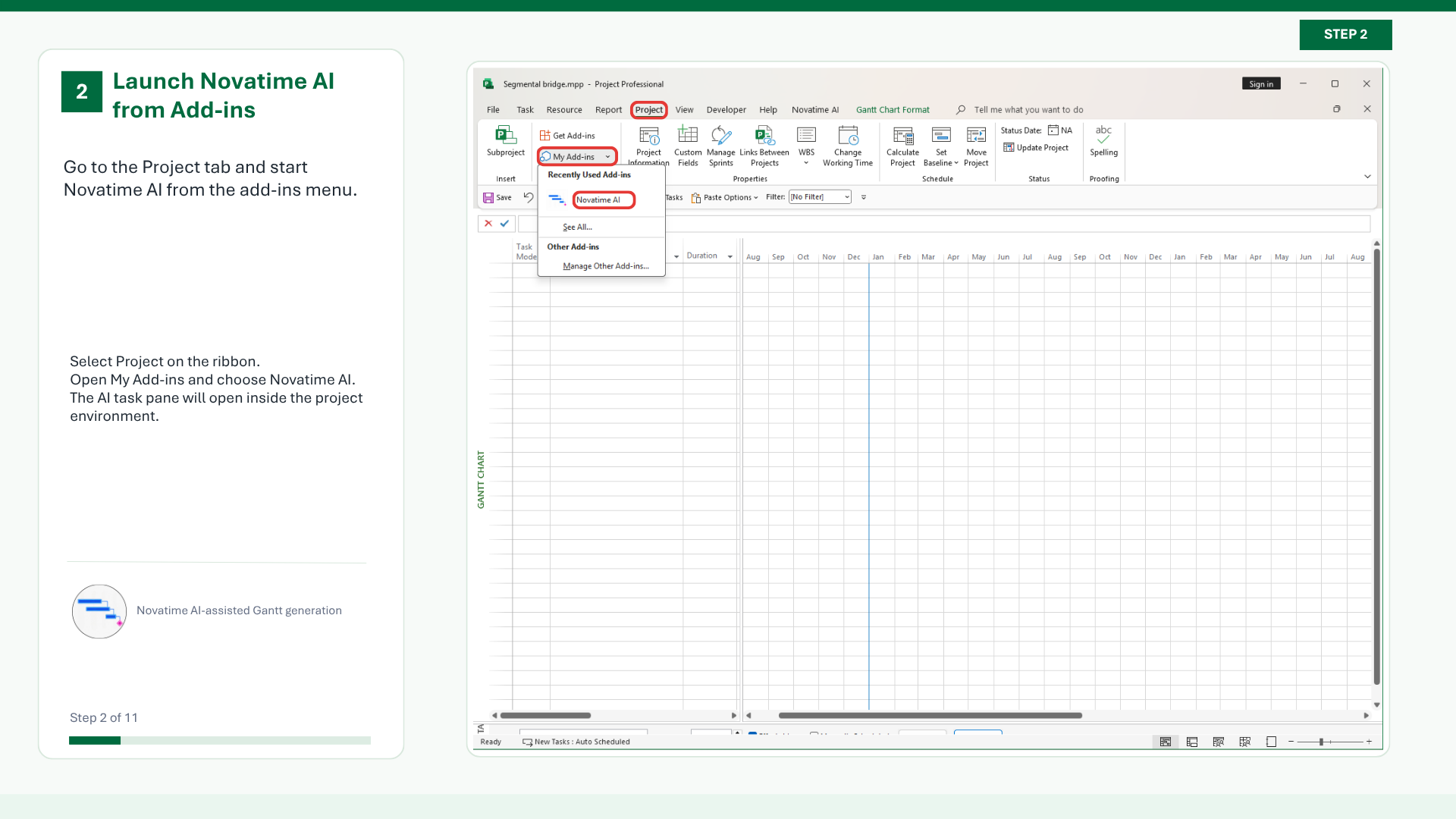
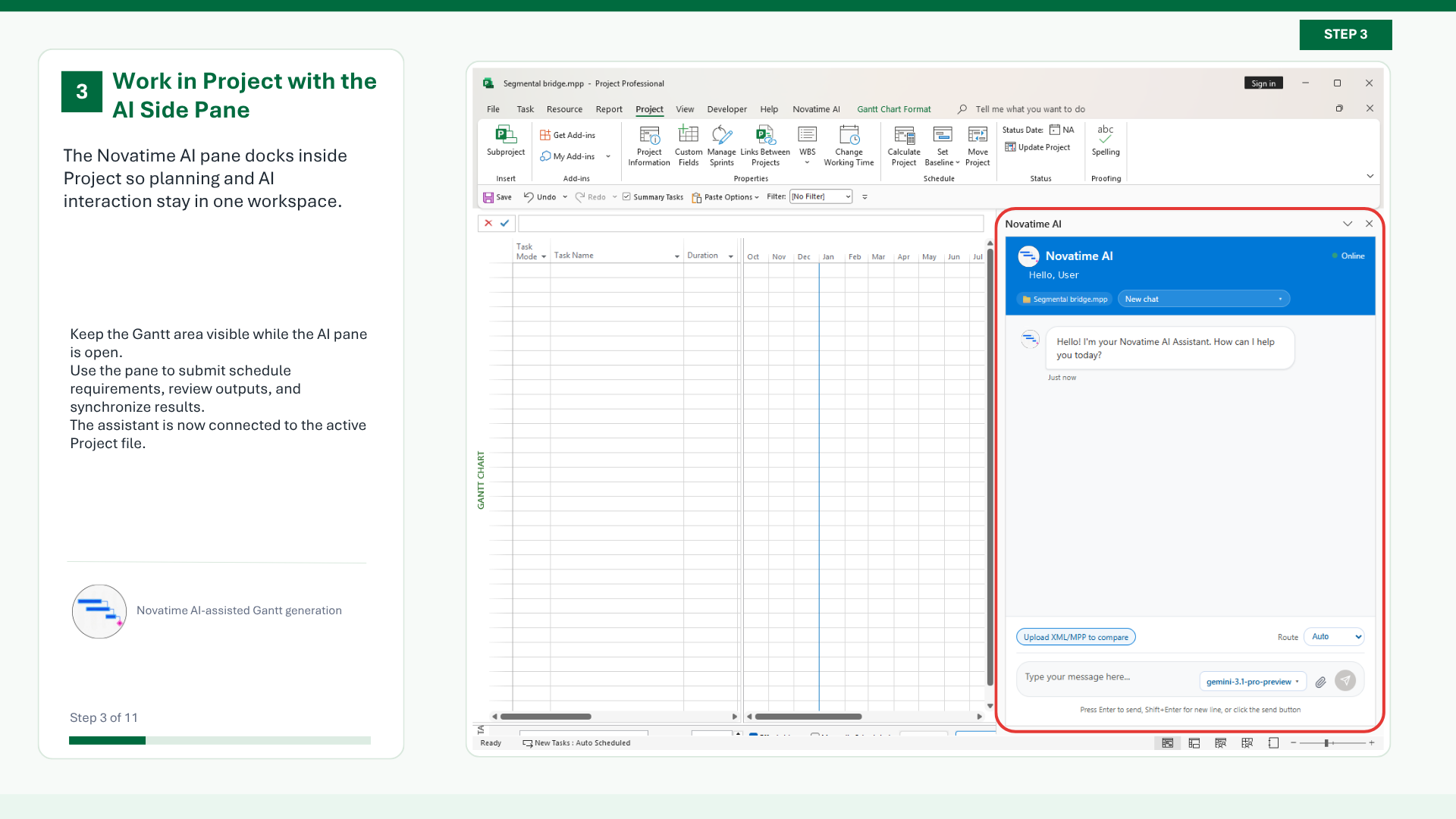
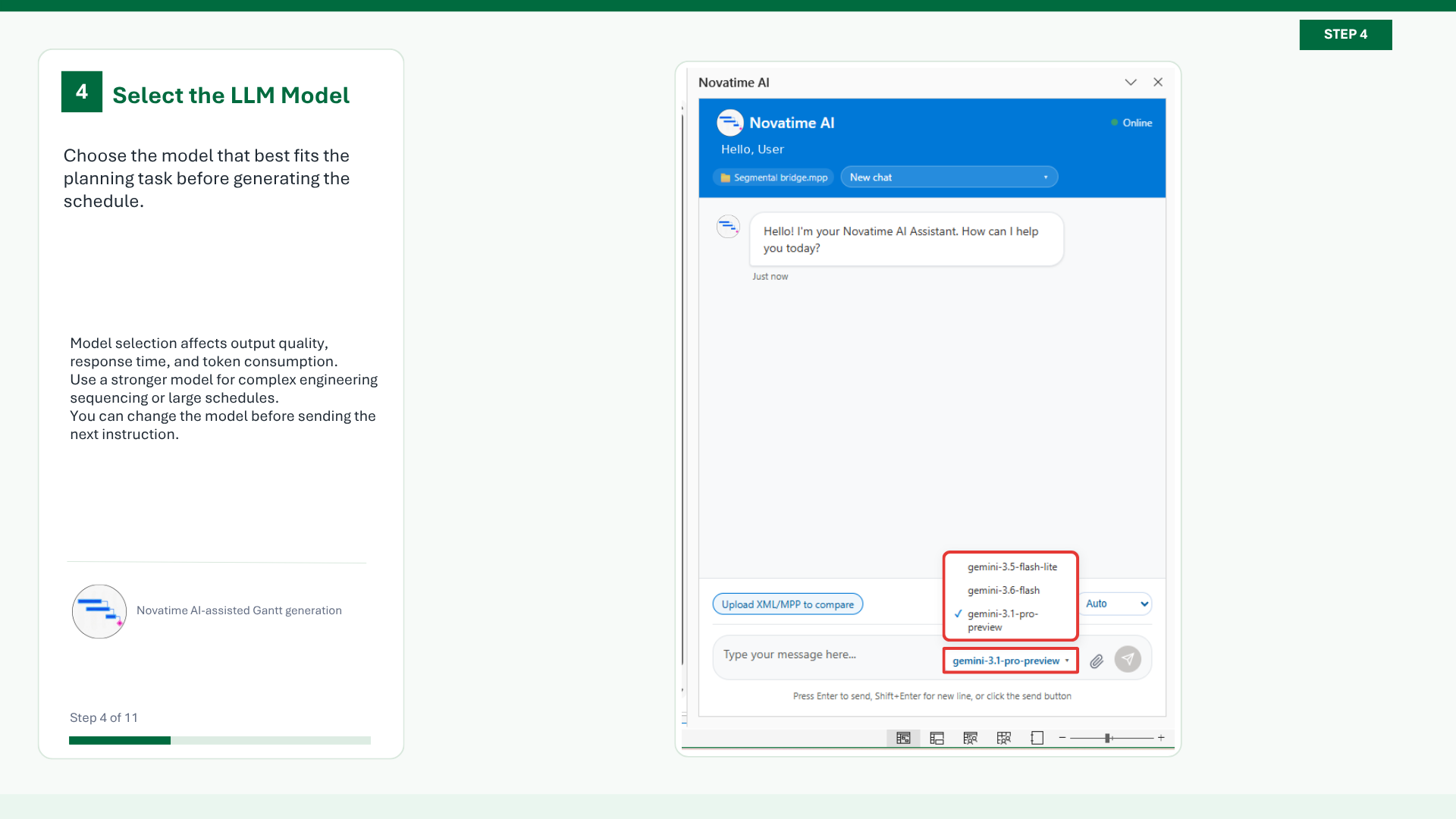
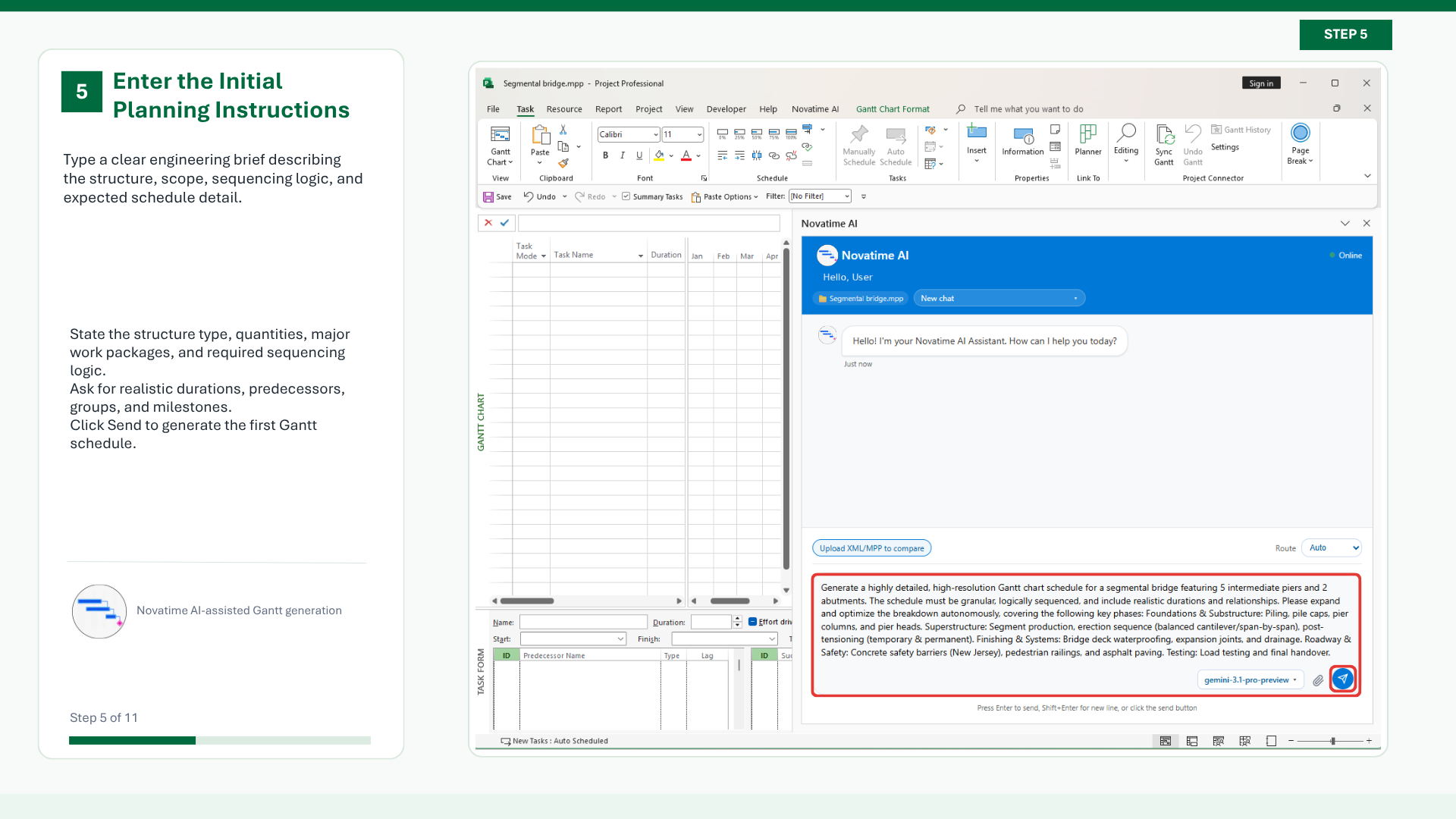
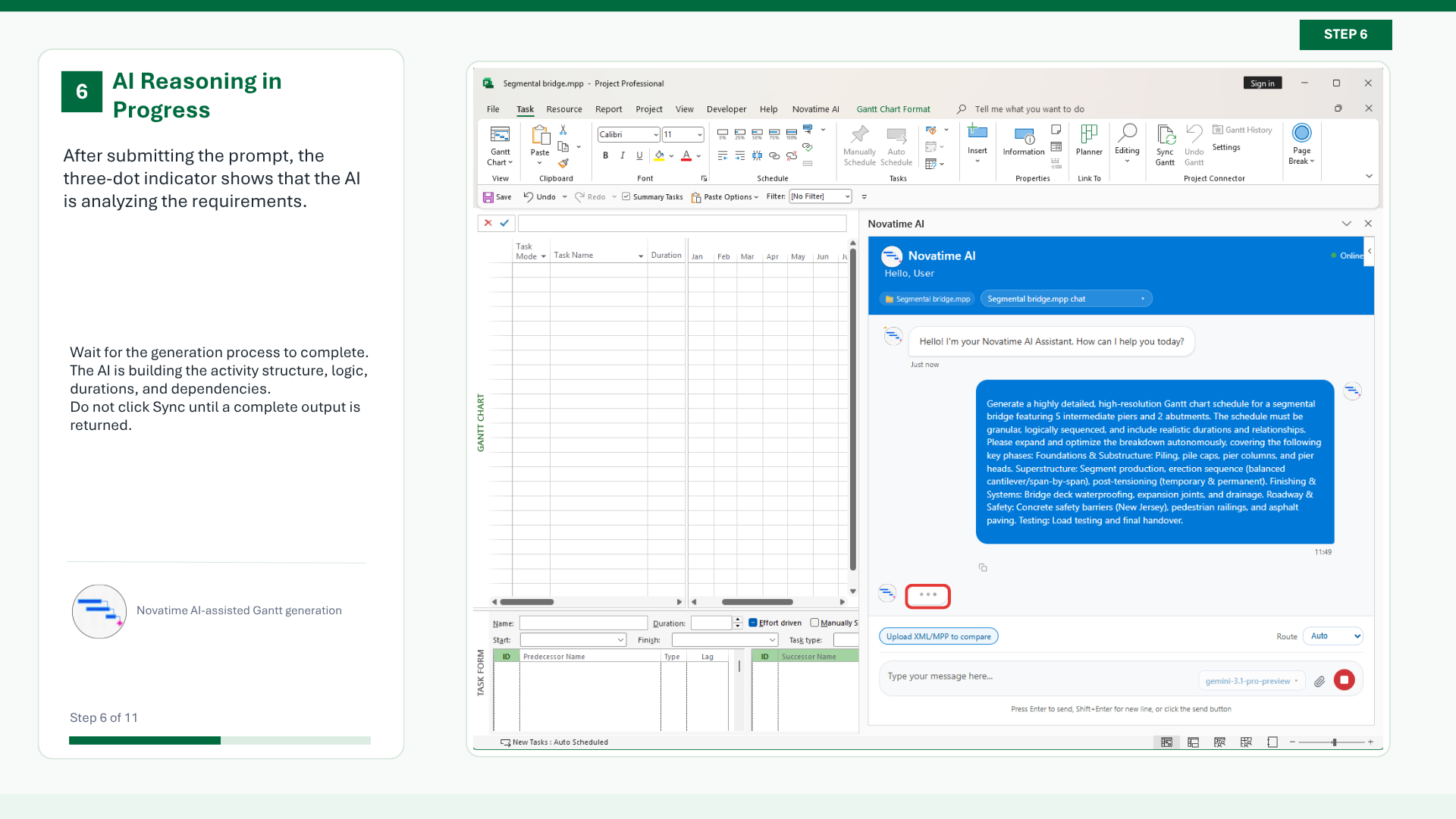
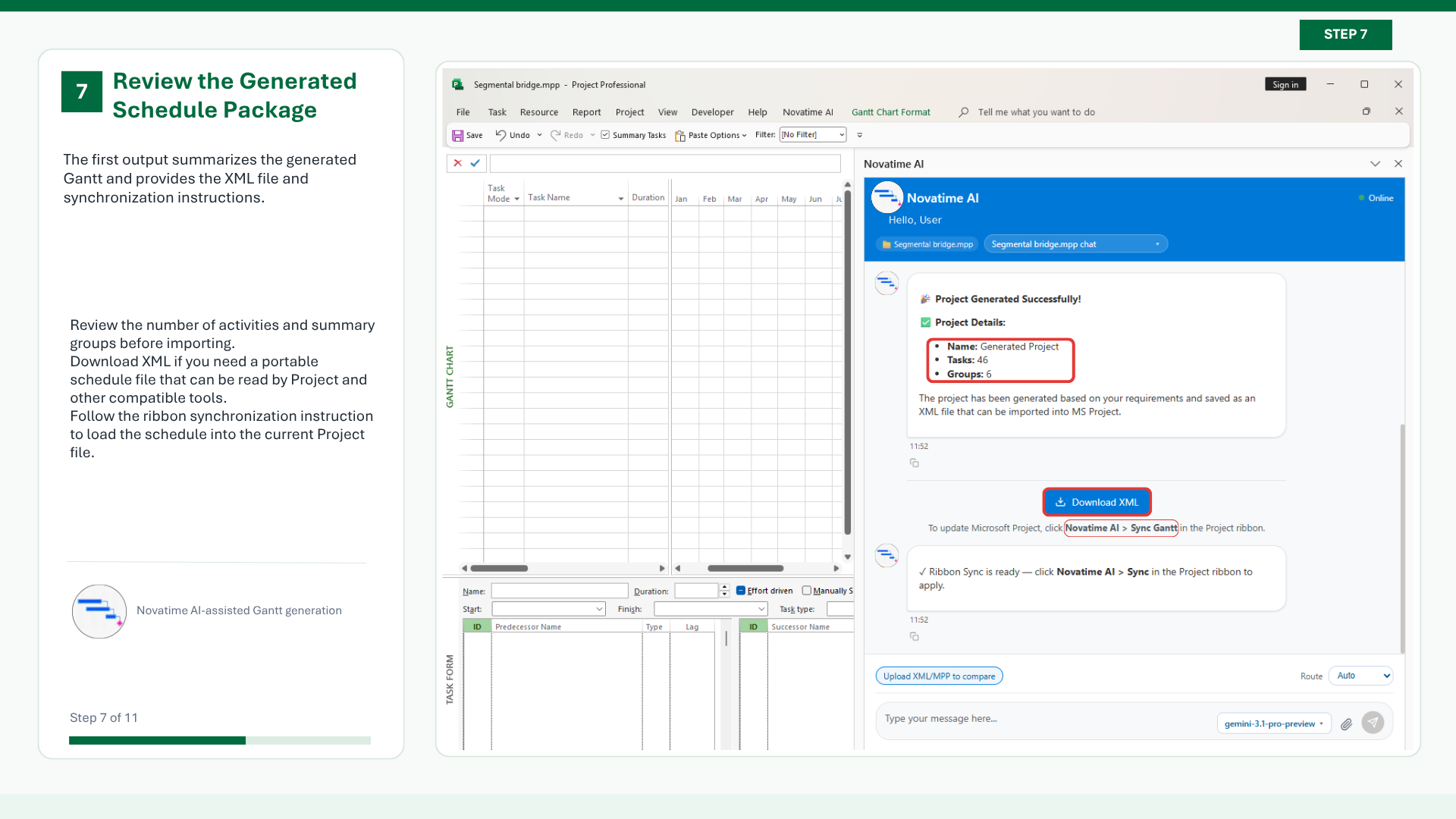
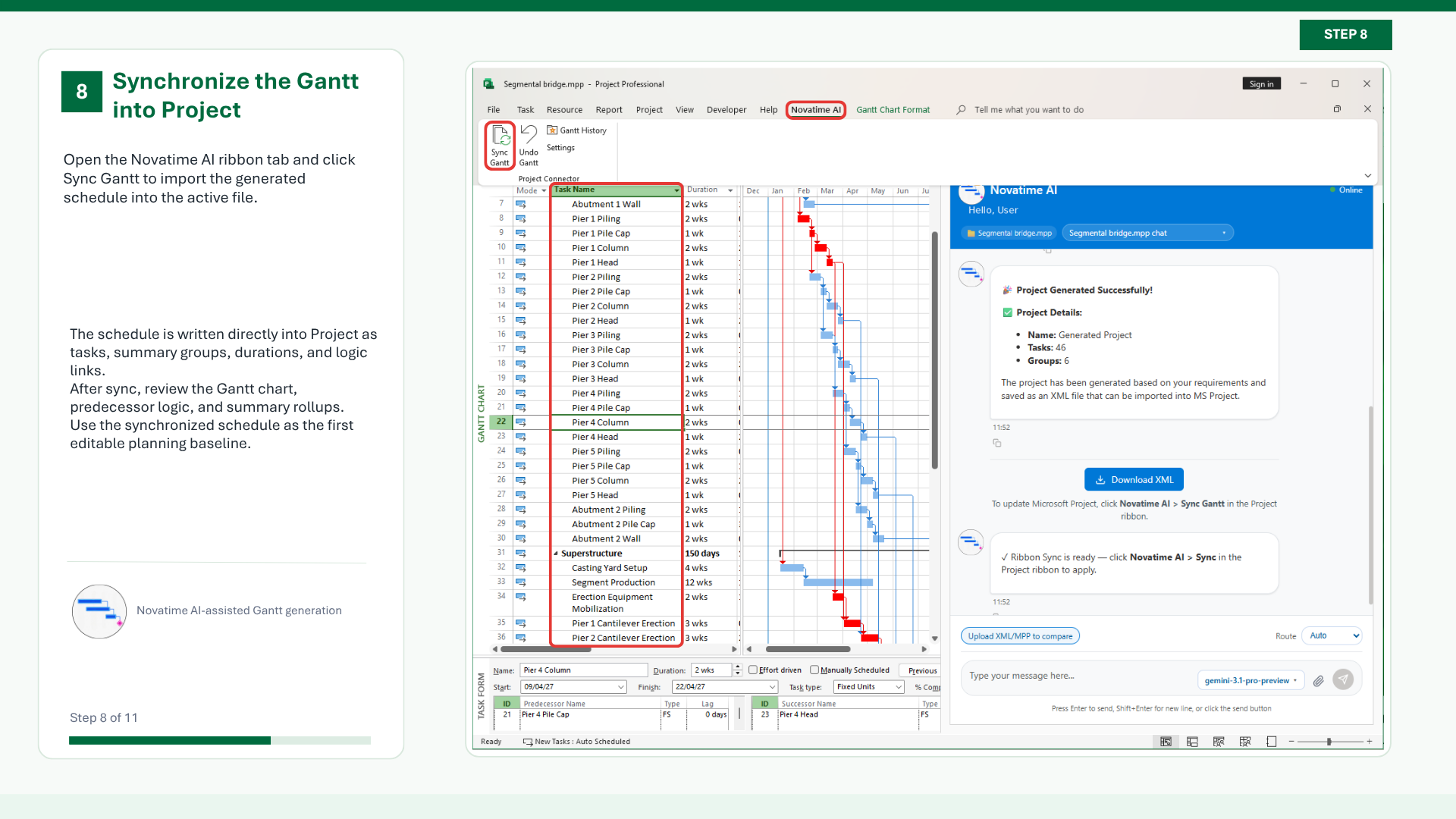
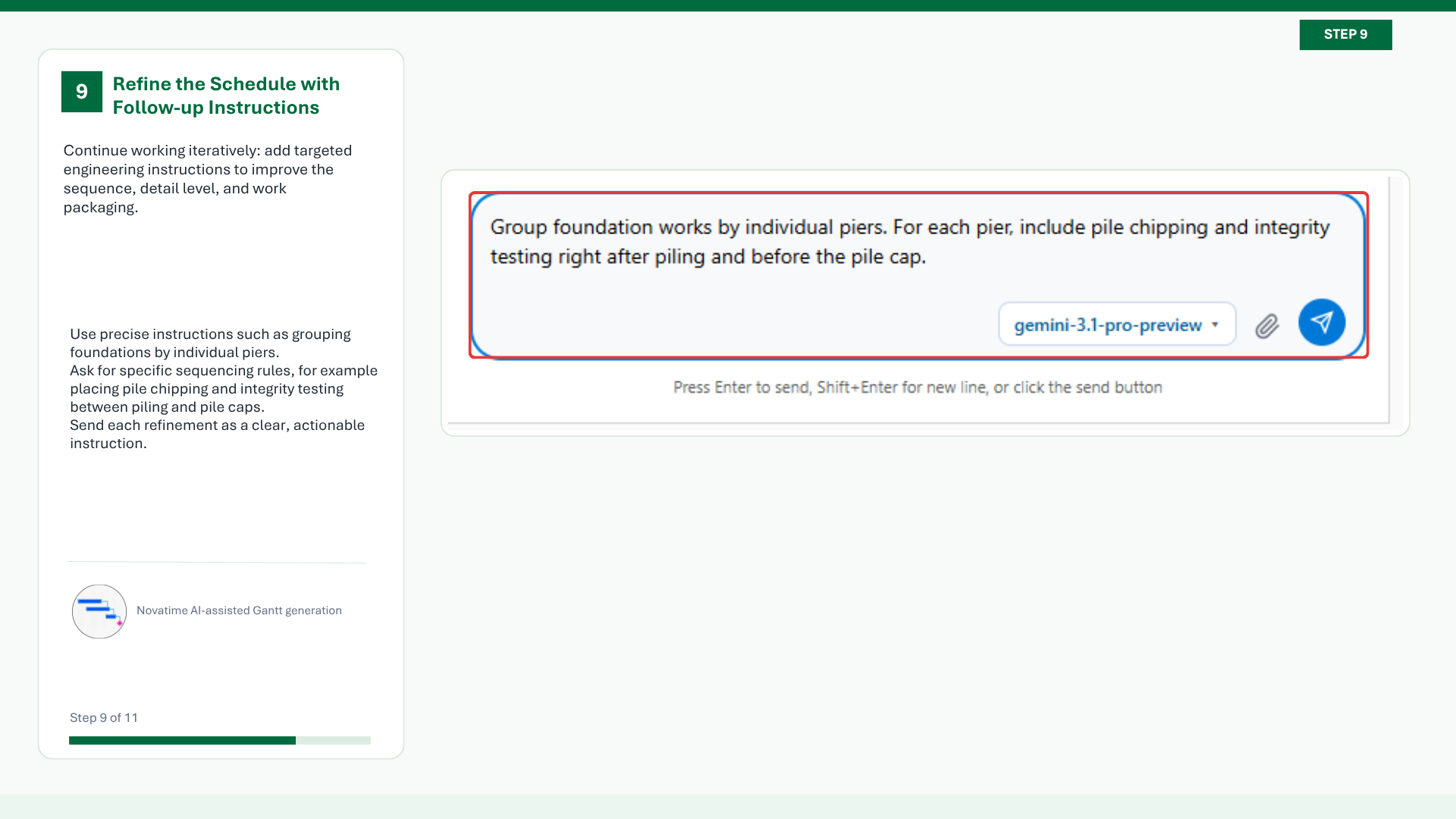
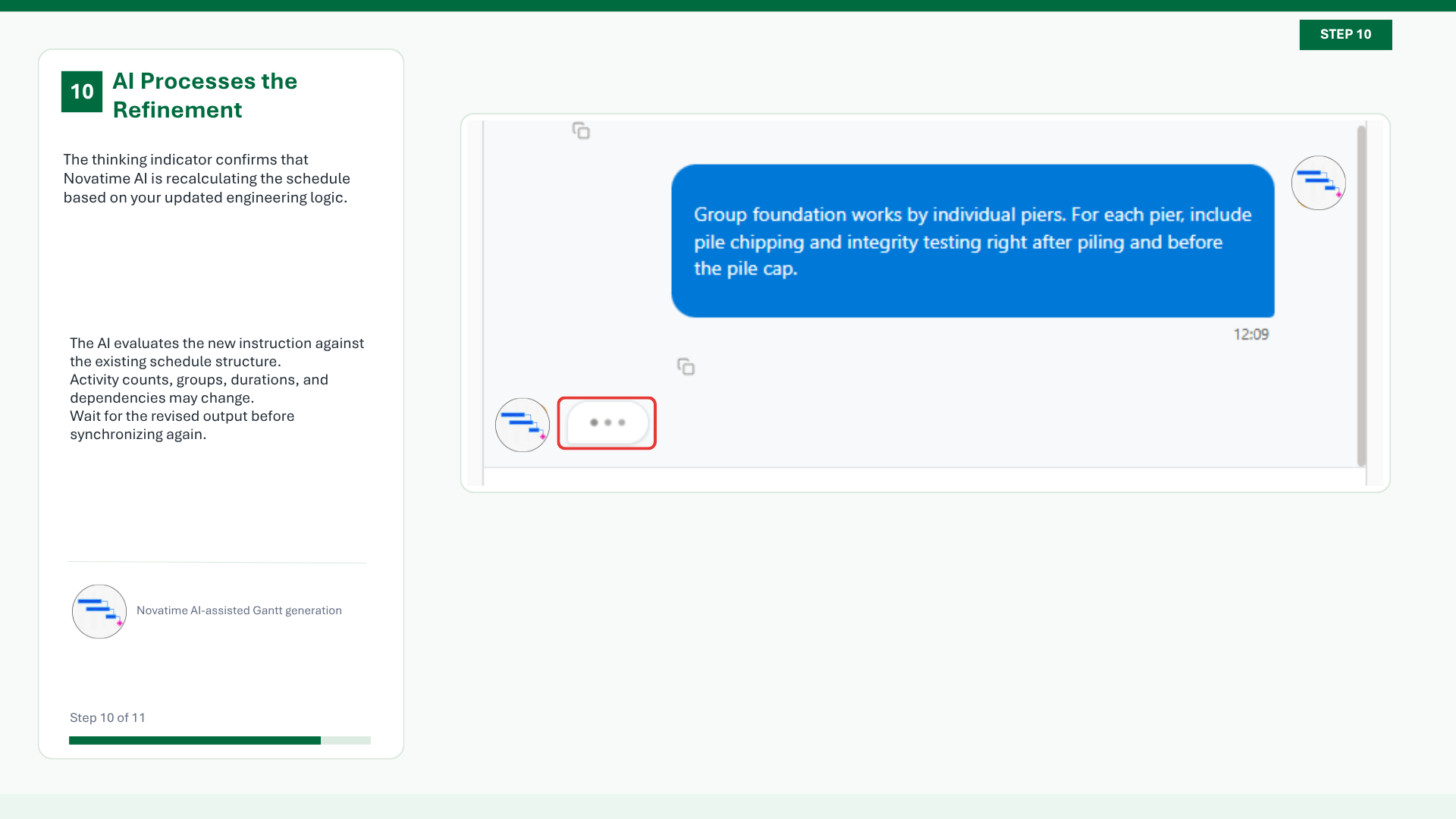
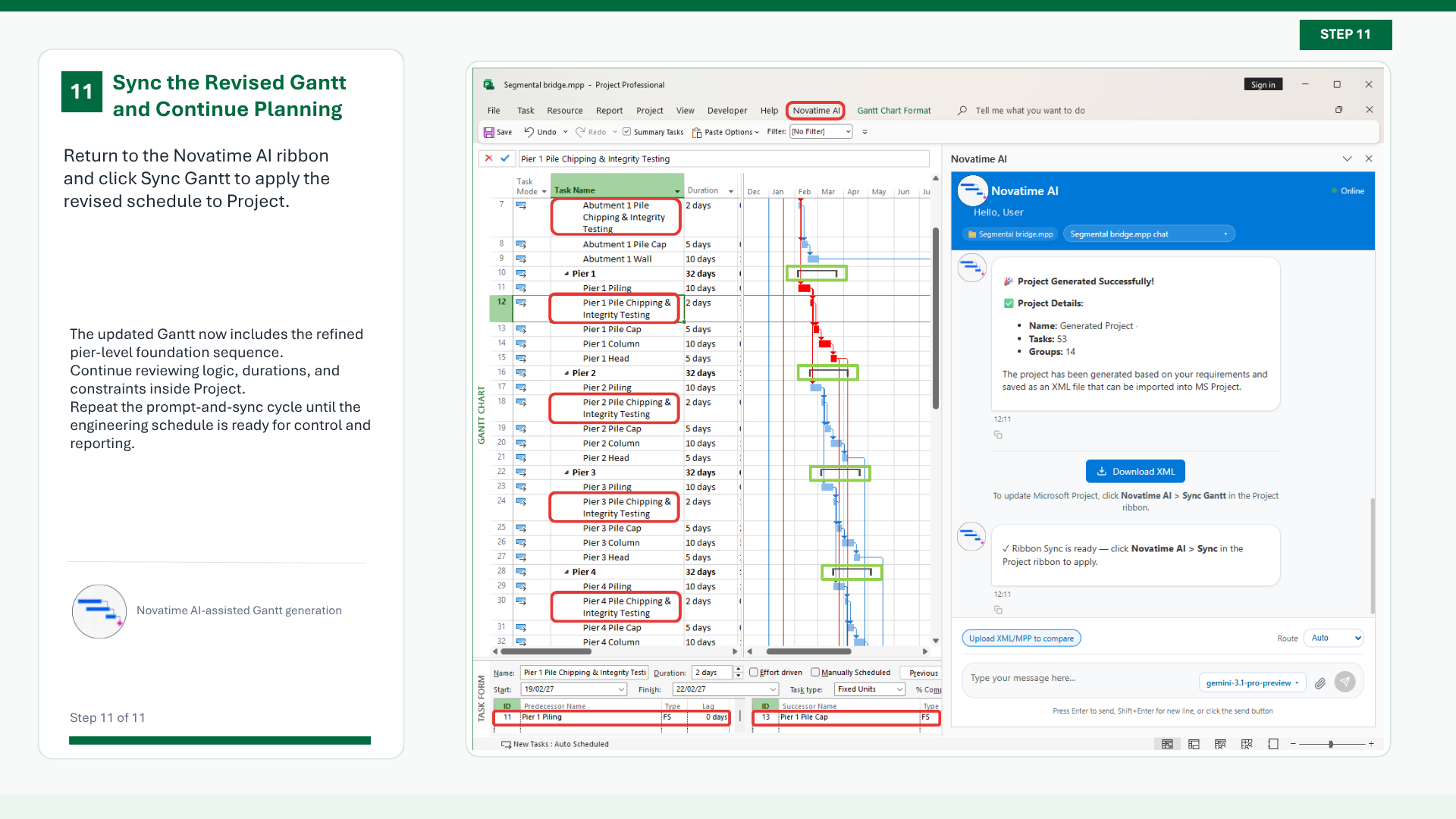
Once NovaTimeAI has been installed, use our step-by-step guide to learn how to launch the add-in, generate a project schedule with AI, refine the schedule, and synchronize the results with Microsoft Project.